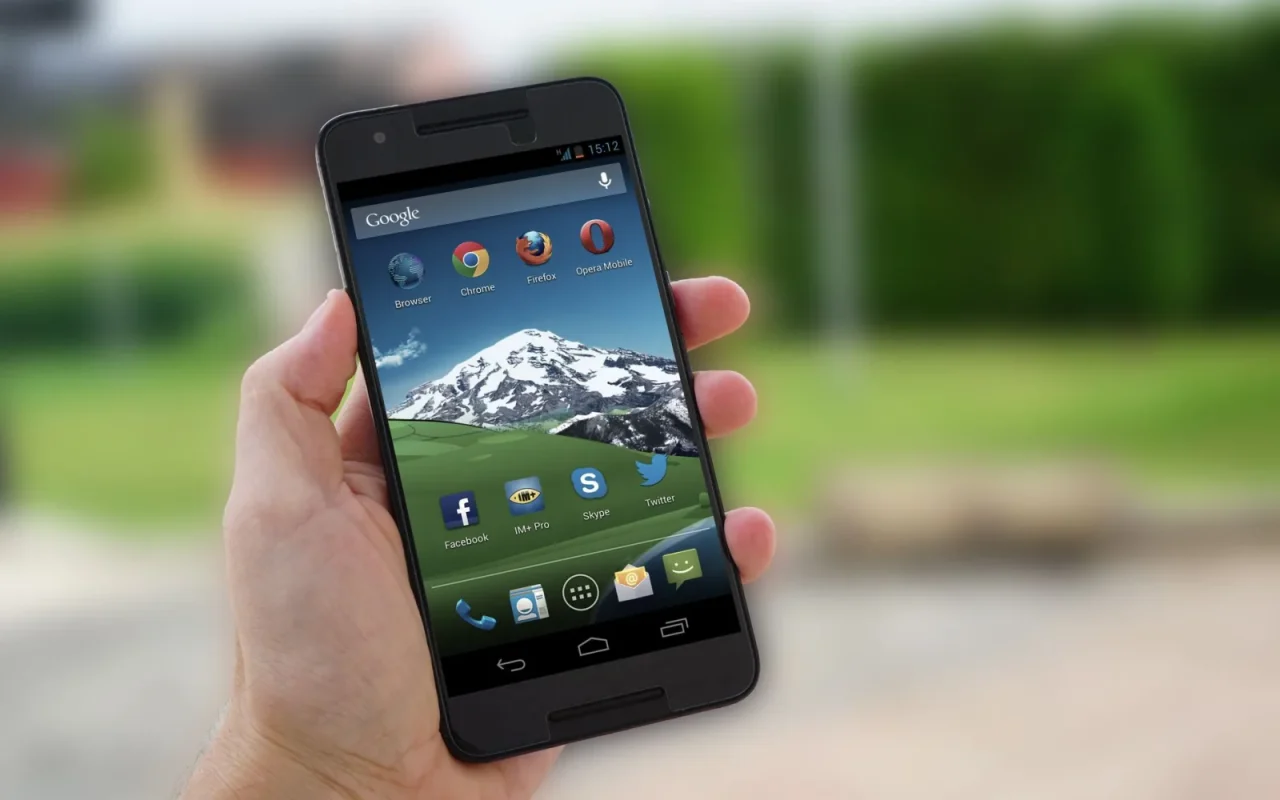
Losing the app on a robot mower is a strange kind of helpless. The machine itself is out on the grass, cutting away perfectly, but you cannot see its status, change the schedule, or send it home, because the screen just spins or throws a login error. I hit this the week a phone update landed, and the fix took three minutes once I stopped blaming the mower. App problems are almost always phone-side or account-side, separate from how the mower connects to your network. That means you can fix most of them from the couch without touching the machine, and this order gets you there quickly.
Separate the App from the Mower's Connection
Before you troubleshoot anything, decide which problem you actually have. An app that crashes, freezes on a loading screen, or refuses your login is a software or account issue on your phone. A mower that shows offline in an otherwise working app is a network or signal problem between the machine and your router. These need different fixes. A quick test: if the app opens and runs but the mower reads offline, the app is fine and the connection is the issue. If the app itself will not load or keeps closing, focus on the phone and account first, which is what the steps below cover.
If you are just getting oriented, Robot Mower Troubleshooting: Fix Common Problems is the best place to begin.
Restart the App and Your Phone
The oldest fix is still the best one, and it clears a surprising share of app faults. Fully close the app rather than just switching away from it, since a backgrounded app can hang in a bad state. Swipe it shut from the recent-apps view, then reopen it. If it still misbehaves, restart the phone itself to clear stuck memory and refresh the network connection. Give it a full power cycle, not just a screen lock. This costs two minutes and resolves freezes, spinning loaders, and general sluggishness more often than any other step. Try it before deleting anything or digging into settings, because the harder fixes are rarely necessary.
Update the App and Your Operating System
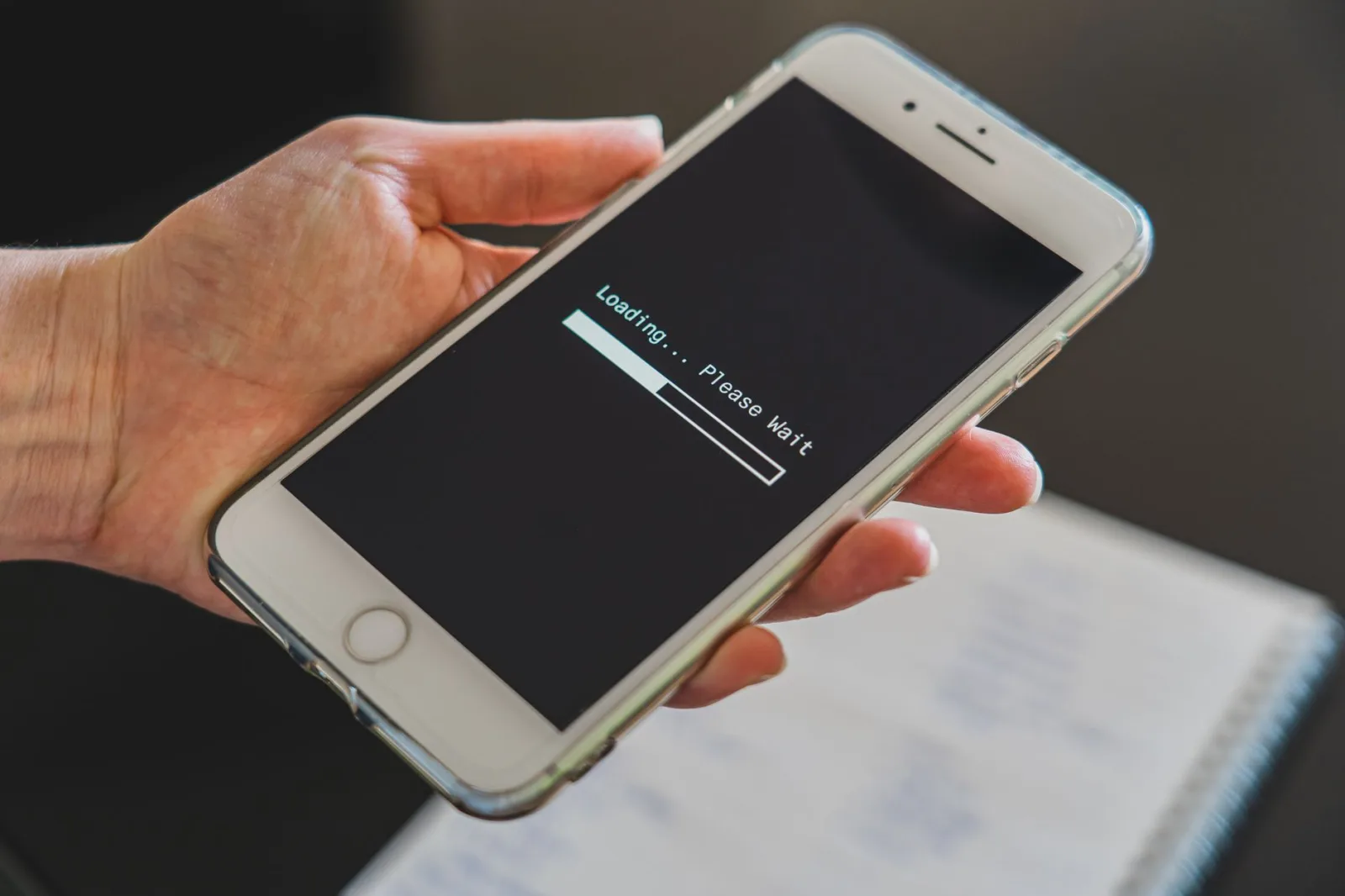
Most app breakage traces to a version mismatch. When your phone updates its operating system, an older app version can stop working until its developer catches up, and an app you have not updated in months may no longer talk to the current servers. Open your app store and check for a pending update to the mower app, then install it. Also check that your phone's operating system is current, since some apps require a recent version. If the app broke right after a phone update, an app update usually restores it within a day or two. Turning on automatic app updates prevents this from catching you again next season.
Check Login, Servers, and Account Status
A login that will not take is often not your fault. Confirm your email and password are correct, and use the reset-password option if you are unsure, since a silent password change on another device can lock you out. App servers occasionally go down for maintenance, which shows up as a login failure or a stuck loading screen for everyone at once. Check the brand's status page or social feed before assuming your account is broken. Some apps also sign you out after a long absence or a security update and simply need a fresh login. Make sure your phone actually has a working internet connection while you try.
App Fix Steps in Order
- Decide if the app is broken or the mower is offline
- Fully close the app and reopen it
- Restart the phone with a complete power cycle
- Check the app store for a pending app update
- Confirm your phone's operating system is current
- Verify your login email and password are correct
- Reset the password if a login keeps failing
- Check the brand's status page for a server outage
- Confirm the phone has a working internet connection
- Delete and reinstall the app from the official store
- Sign back in and confirm the mower and zones reappear
- Use the on-body controls to run the mower meanwhile
It helps to read this alongside Robot Mower Making Strange Noises? What to Check.
Reinstall the App as a Clean Slate
When updates and restarts fail, a clean reinstall clears corrupted app data that nothing else reaches. First confirm you know your account login, because reinstalling logs you out and you will need to sign back in. Delete the app, restart the phone, then download a fresh copy from the official app store, not a third-party site. Sign in again and your mower and its saved schedule and zones should reappear, since that data lives in your account rather than the app. A reinstall is the reliable cure for an app that crashes on launch or shows scrambled screens that survive a normal update.
If you like to read around a topic, see lithium-ion battery basics.
Control the Mower Meanwhile and When to Get Help
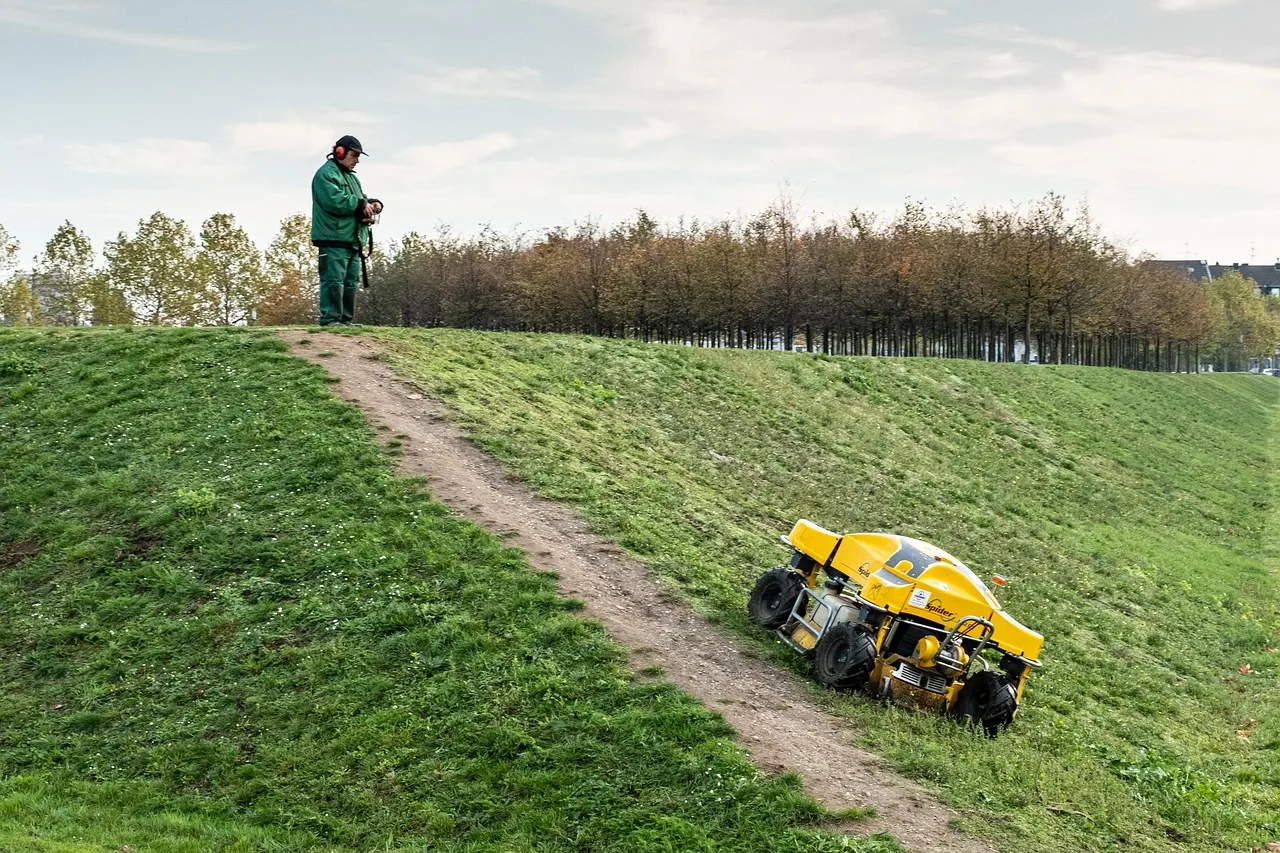
While you sort the app out, remember the mower is not helpless without it. Nearly every model has physical controls on the body: a stop button, a start or home command, and often a small keypad or screen for basic settings behind a PIN. Use those to pause, start, or dock the machine in the meantime. If the app still fails after a reinstall, a current phone, and a confirmed working login, the problem may be a server-side account issue or a bug the maker needs to fix. Contact the brand's support with your app version and phone model. Keep the official manual handy for the on-body controls.
A final word
An app that will not cooperate feels worse than it is, because the mower keeps working fine on the grass while you lose your window into it. The fix is almost always on your side of the connection: close and reopen, restart the phone, update the app, check your login, and reinstall if it comes to that. Meanwhile the buttons on the machine give you full control, so nothing is truly lost. Learn those on-body controls once and an app hiccup becomes a minor annoyance rather than an emergency, letting you sort the software at your own pace while the lawn keeps getting cut.
If you want to go deeper, our guide to Robot Mower Not Charging? Here's How to Fix It covers the details.