The first time my mower refused to leave its dock, I panicked and nearly boxed it up for a return. The real fix was embarrassingly simple: a firmware update that had been sitting in the app for three weeks, waiting for me to tap one button. Robot mowers are little computers on wheels, and like any computer they get patches that squash bugs, sharpen navigation, and occasionally add a feature you paid for but never received. Running the update is easy once you know the rhythm. Here is exactly how I do it, in order, without bricking anything.
Check Whether an Update Is Actually Waiting
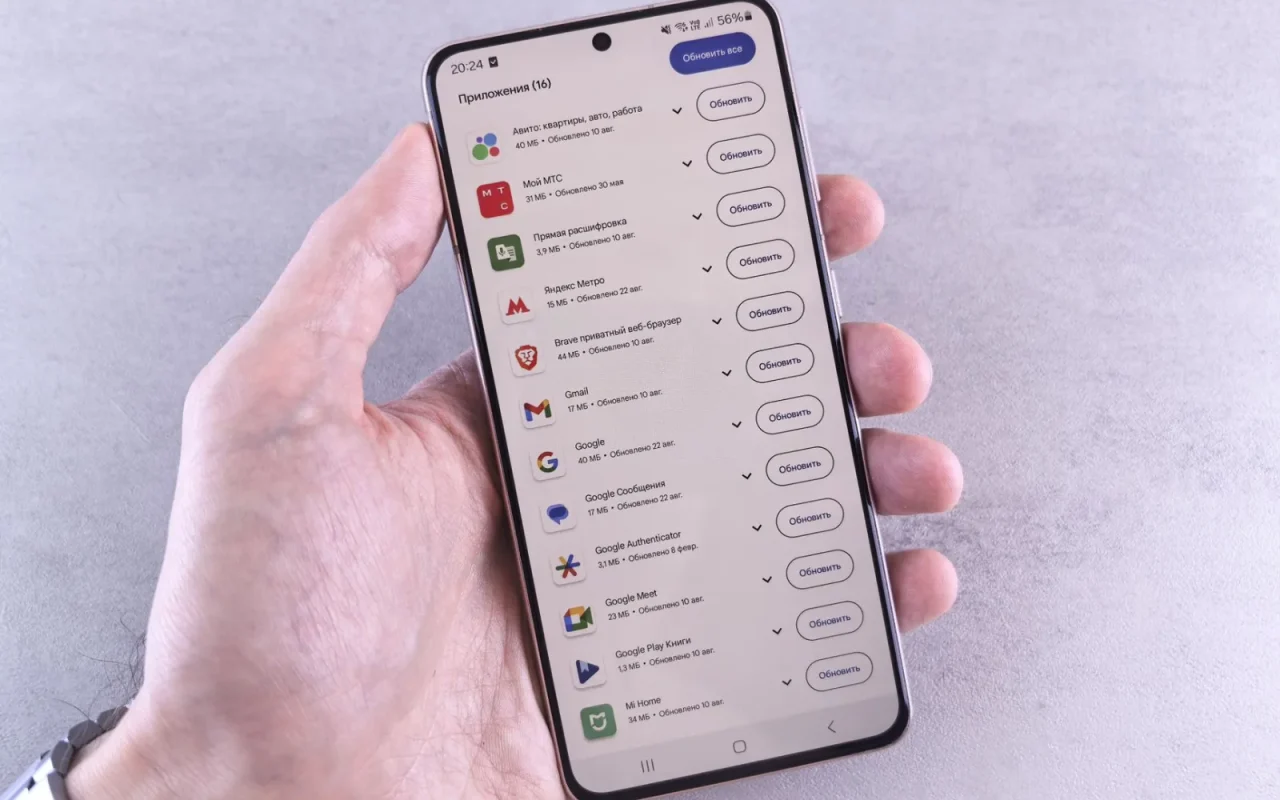
Open your mower's app and look for a settings or device section, usually marked with a gear icon. Most brands show the current firmware version and a small badge or banner when a newer build is ready. If you see a version number and nothing else, you are already current. Do not go hunting on random websites for files to flash by hand, because that is how people ruin a perfectly good machine. The manufacturer pushes updates through the official app for a reason. Check roughly once a month during mowing season, and after any odd behavior like missed schedules or navigation glitches, since those are exactly what patches tend to address.
If you are just getting oriented, Robot Mower Maintenance: The Complete Guide is the best place to begin.
Get the Mower Docked and Connected First
An update needs three things: the mower on its charging base, a decent battery level, and a stable connection. Send the mower home from the app or set it on the dock by hand, then confirm it is charging. Aim for at least 50 percent battery, though many models insist on being docked regardless. Connection is where people get stuck. Boundary-wire units often talk over Bluetooth or a home WiFi bridge, while wire-free GPS models usually use a built-in cellular or WiFi link. If the app shows the mower as offline, fix that before you touch the update button, because a dropped connection mid-install is the main cause of failures.
Start the Update and Leave It Alone
Once the mower is docked and connected, tap the update prompt and confirm. The app will download the new build, then push it to the mower, which reboots one or more times. This can take anywhere from five to twenty-five minutes depending on the size of the patch and your connection speed. Do not lift the mower, do not send it out to mow, and do not close the app on some brands that need it running in the foreground. Walk away and make a coffee. Interrupting a flash halfway through is the one move that can genuinely damage the software, so patience here is not optional.
Confirm the New Version Installed Cleanly
When the app says the update finished, reopen the device settings and read the firmware version number. It should match the newer build the app advertised. Send the mower on a short test run around the yard and watch the first few minutes. Navigation, docking, and blade behavior should all feel normal or better. If the app added a feature, such as a new zone tool or a rain-delay setting, poke around and make sure it appears. Keeping a quick note of the version and date on your phone helps later, since it lets you tell support exactly what you are running if a problem crops up.
Firmware Update Checklist
- Open the official app and read the current version number
- Look for an update badge or banner in device settings
- Dock the mower and confirm it is charging
- Make sure battery is at least 50 percent
- Verify the mower shows as online, not offline
- Move closer to the router if the signal looks weak
- Tap update and leave the mower undisturbed
- Wait through any reboots without lifting the mower
- Confirm the new version number after it finishes
- Run a short test mow to check navigation
- Note the version and date for future support calls
- Enable automatic updates if the app supports them
This connects neatly with How to Replace Robot Mower Blades Safely.
When an Update Stalls or Fails
Sometimes a bar hangs at 40 percent and just sits there. Give it a full ten minutes before assuming trouble, since large patches move slowly. If it truly stalls, force-close the app, reopen it, and check the mower's status. Many models will simply resume or retry on their own. Power-cycling the charging base and rebooting the mower with its main switch clears most snags. Move your router closer or switch the mower to a stronger WiFi band if the connection keeps dropping. If it fails three times running, stop and contact the manufacturer rather than improvising, because a half-written firmware needs their tools to recover.
For broader background, general lawn mower mechanics is a solid reference.
Set a Habit So You Never Fall Behind
The owners who never think about firmware are the ones who quietly stay current. Turn on automatic updates if your app offers them, which schedules the install during a docked overnight window so you wake up patched. If your model only does manual updates, tie the check to something you already do, like the weekly blade wipe or the Sunday schedule review. A five-minute glance each month costs nothing and spares you the frustration of chasing a bug that was fixed months ago. Consistent small maintenance beats one long troubleshooting session every time, and firmware is the cheapest habit of the lot.
Where this leaves you
Firmware updates are the least glamorous part of owning a robot mower and quietly one of the most useful. A patch you install in ten minutes can fix the exact stuck-at-the-dock frustration that sends people reaching for the return box. Dock the mower, confirm it is online, tap update, and walk away until it finishes. Then run a quick test mow to be sure everything took. Build the check into a monthly habit or let automatic updates carry the load, and your mower keeps getting smarter without you thinking about it. The best maintenance is the kind you barely notice doing.
If you want to go deeper, our guide to How to Keep Robot Mower Charging Contacts Clean covers the details.